Extending Disk Sizes with LVM

A lot of customers ask the question of how to have a data volume that can be incrementally increased in size vertically over a period of time. Here is how to setup a server like that from start to finish.

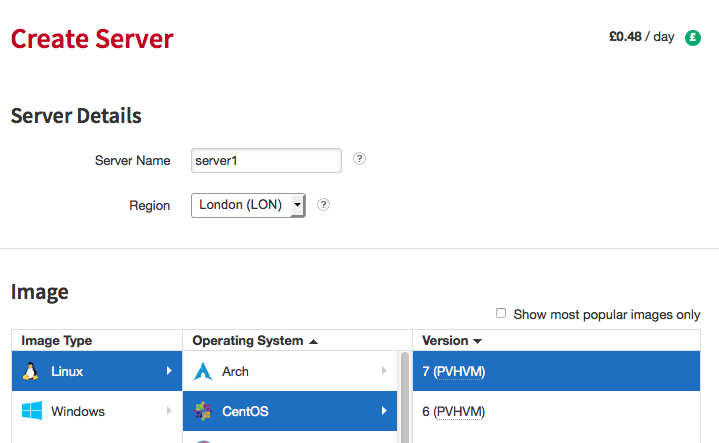
Step 1. Create Rackspace Cloud server
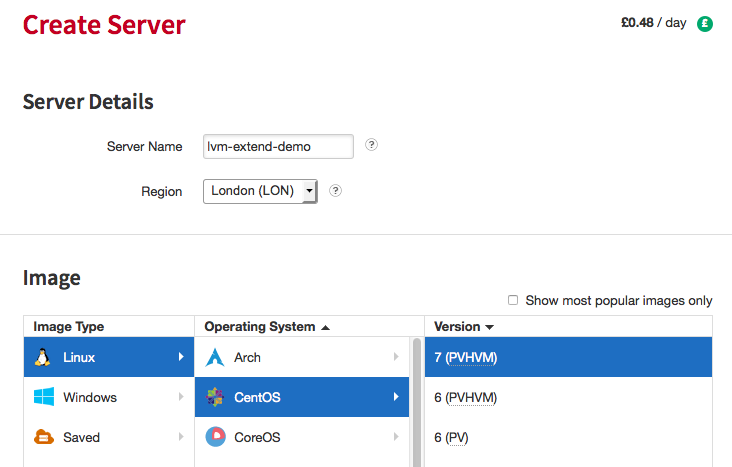
Screen Shot 2015-10-12 at 11.21.40 AM

Click create server at bottom left once you are happy with the distribution you want to use:

Screen Shot 2015-10-12 at 11.24.22 AM

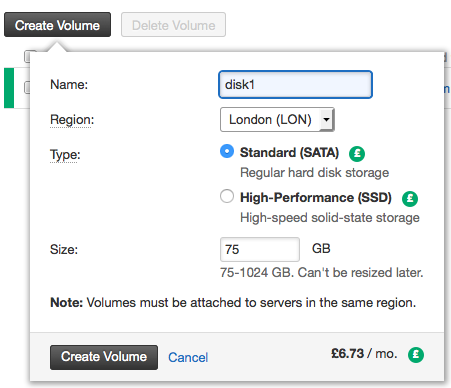
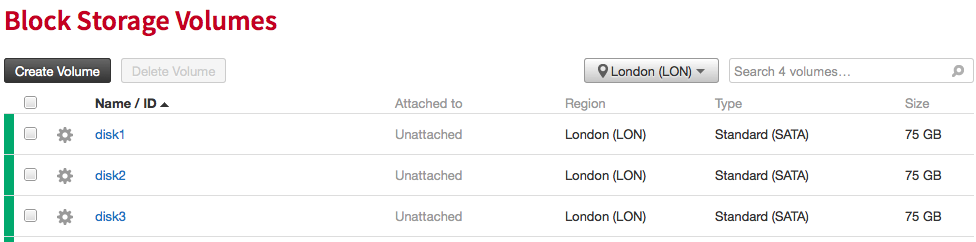
Step 2. Create Cloud Block Storage Volumes. In this case I’m going to create 3 x 75 Gig disks.
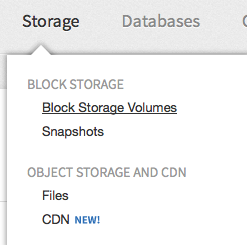
Screen Shot 2015-10-12 at 11.25.30 AM

Screen Shot 2015-10-12 at 11.26.27 AM

Screen Shot 2015-10-12 at 11.26.53 AM

Now your done creating your server and the volumes you are going to use with it. We could have just added 1 Cloud block storage volume, and added the others later, but for this demo, we’re going to show you how to extend the initial partition with the space capacity of the other 2.

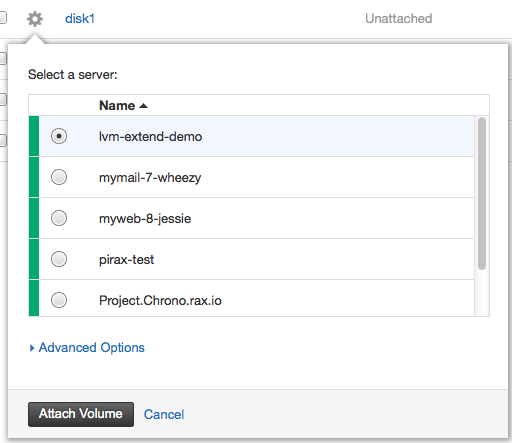
Step 3. Attach your Cloud Block Storage Volumes to the server:
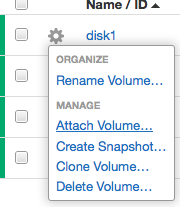
Screen Shot 2015-10-12 at 11.30.05 AM

Screen Shot 2015-10-12 at 11.30.25 AM

Step 4. Login to your Cloud Server

$ ssh [email protected]
The authenticity of host '37.188.1.1 (37.188.1.1)' can't be established.
RSA key fingerprint is 51:e9:e6:c1:4b:f8:24:9f:2a:8a:36:ec:bf:47:23:d4.
Are you sure you want to continue connecting (yes/no)? yes
Warning: Permanently added '37.188.1.1' (RSA) to the list of known hosts.
Last login: Thu Jan  1 00:00:10 1970

Step 5. Run fdisk -l (list) to see attached volumes to server

Disk /dev/xvdc: 536 MB, 536870912 bytes, 1048576 sectors
Units = sectors of 1 * 512 = 512 bytes
Sector size (logical/physical): 512 bytes / 512 bytes
I/O size (minimum/optimal): 512 bytes / 512 bytes
Disk label type: dos
Disk identifier: 0x0004ece3

Device Boot Start End Blocks Id System
/dev/xvdc1 2048 1048575 523264 83 Linux

Disk /dev/xvda: 21.5 GB, 21474836480 bytes, 41943040 sectors
Units = sectors of 1 * 512 = 512 bytes
Sector size (logical/physical): 512 bytes / 512 bytes
I/O size (minimum/optimal): 512 bytes / 512 bytes
Disk label type: dos
Disk identifier: 0x000b1244

Device Boot Start End Blocks Id System
/dev/xvda1 * 2048 41943039 20970496 83 Linux

Disk /dev/xvdb: 80.5 GB, 80530636800 bytes, 157286400 sectors
Units = sectors of 1 * 512 = 512 bytes
Sector size (logical/physical): 512 bytes / 512 bytes
I/O size (minimum/optimal): 512 bytes / 512 bytes

Disk /dev/xvdd: 80.5 GB, 80530636800 bytes, 157286400 sectors
Units = sectors of 1 * 512 = 512 bytes
Sector size (logical/physical): 512 bytes / 512 bytes
I/O size (minimum/optimal): 512 bytes / 512 bytes

I actually discovered at this point that CentOS 7 only supports 3 virtual disks as standard. I’m having the issue because the Rackspace centOS 7 image is shipping with HVM which is causing the issues, if it was just PV type we would be okay. You should switch to a PV version of CentOS now if you want more than 3 virtual disks with your Rackspace Cloud Server.

Step 5: Running the same command on a CentOS 6 PV server allows me to add more disks thru the control panel

[root@lvm-extend-test ~]# fdisk -l

Disk /dev/xvdc: 536 MB, 536870912 bytes
70 heads, 4 sectors/track, 3744 cylinders
Units = cylinders of 280 * 512 = 143360 bytes
Sector size (logical/physical): 512 bytes / 512 bytes
I/O size (minimum/optimal): 512 bytes / 512 bytes
Disk identifier: 0x000f037d

    Device Boot      Start         End      Blocks   Id  System
/dev/xvdc1               8        3745      523264   83  Linux

Disk /dev/xvda: 21.5 GB, 21474836480 bytes
255 heads, 63 sectors/track, 2610 cylinders
Units = cylinders of 16065 * 512 = 8225280 bytes
Sector size (logical/physical): 512 bytes / 512 bytes
I/O size (minimum/optimal): 512 bytes / 512 bytes
Disk identifier: 0x0003e086

    Device Boot      Start         End      Blocks   Id  System
/dev/xvda1   *           1        2611    20970496   83  Linux

Disk /dev/xvdb: 80.5 GB, 80530636800 bytes
255 heads, 63 sectors/track, 9790 cylinders
Units = cylinders of 16065 * 512 = 8225280 bytes
Sector size (logical/physical): 512 bytes / 512 bytes
I/O size (minimum/optimal): 512 bytes / 512 bytes
Disk identifier: 0x00000000


Disk /dev/xvdd: 80.5 GB, 80530636800 bytes
255 heads, 63 sectors/track, 9790 cylinders
Units = cylinders of 16065 * 512 = 8225280 bytes
Sector size (logical/physical): 512 bytes / 512 bytes
I/O size (minimum/optimal): 512 bytes / 512 bytes
Disk identifier: 0x00000000


Disk /dev/xvde: 80.5 GB, 80530636800 bytes
255 heads, 63 sectors/track, 9790 cylinders
Units = cylinders of 16065 * 512 = 8225280 bytes
Sector size (logical/physical): 512 bytes / 512 bytes
I/O size (minimum/optimal): 512 bytes / 512 bytes
Disk identifier: 0x00000000


Disk /dev/xvdf: 80.5 GB, 80530636800 bytes
255 heads, 63 sectors/track, 9790 cylinders
Units = cylinders of 16065 * 512 = 8225280 bytes
Sector size (logical/physical): 512 bytes / 512 bytes
I/O size (minimum/optimal): 512 bytes / 512 bytes
Disk identifier: 0x00000000


Disk /dev/xvdg: 80.5 GB, 80530636800 bytes
255 heads, 63 sectors/track, 9790 cylinders
Units = cylinders of 16065 * 512 = 8225280 bytes
Sector size (logical/physical): 512 bytes / 512 bytes
I/O size (minimum/optimal): 512 bytes / 512 bytes
Disk identifier: 0x00000000

Many disks are now available, we can see them by running:

[root@lvm-extend-test ~]# ls /dev/xv*
/dev/xvda  /dev/xvda1  /dev/xvdb  /dev/xvdc  /dev/xvdc1  /dev/xvdd  /dev/xvde  /dev/xvdf  /dev/xvdg

Step 6: Run cfdisk and start partitioning each disk.

cfdisk /dev/xvdb

Create New PartitionScreen Shot 2015-10-12 at 12.24.14 PMof Primary Partition Type

Screen Shot 2015-10-12 at 12.24.23 PMUsing maximum space available

Screen Shot 2015-10-12 at 12.24.29 PM

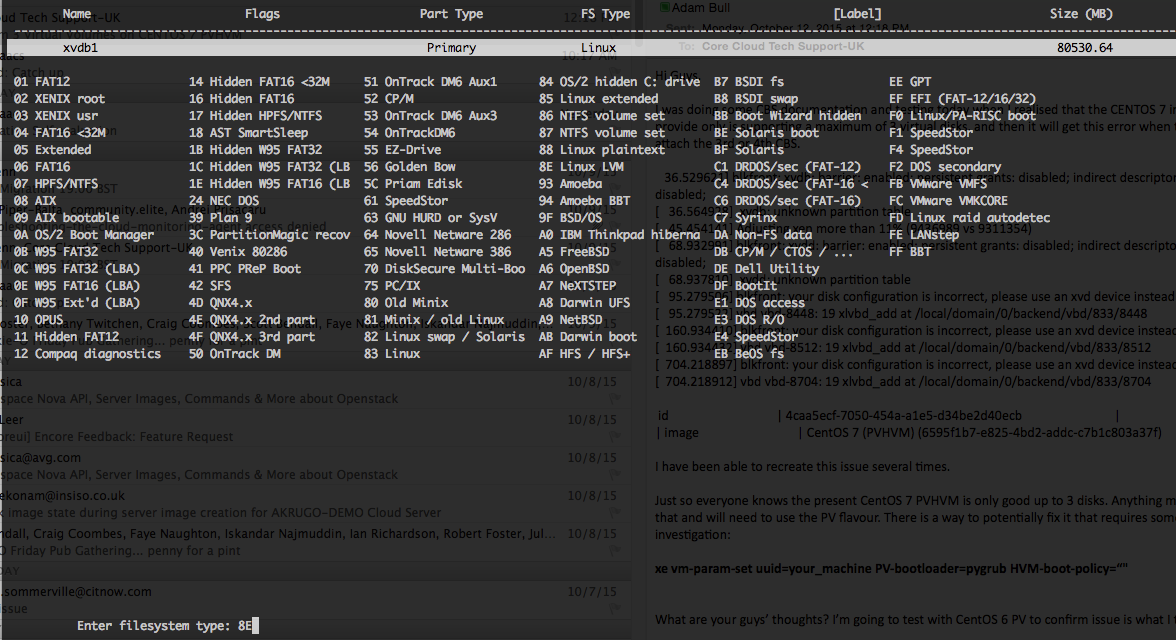
Using type 8E LVM Filesystem TYPE

Screen Shot 2015-10-12 at 12.24.44 PM

Write partition data:
Screen Shot 2015-10-12 at 12.27.40 PM

Step 7: Repeat this for any additional block storage disks you may have. I have a total of 5 CBS volumes, so I need to repeat this another 4 times.

<pre>

cfdisk /dev/xvdc
cfdisk /dev/xvde
cfdisk /dev/xvdf
cfdisk /dev/xvdg

Step 8: Verify that the partitions exist. (check each one has a 1 on the end now)

[root@lvm-extend-test ~]# ls /dev/xvd*
/dev/xvda  /dev/xvda1  /dev/xvdb  /dev/xvdb1  /dev/xvdc  /dev/xvdc1  /dev/xvdd  /dev/xvdd1  /dev/xvde  /dev/xvde1  /dev/xvdf  /dev/xvdf1  /dev/xvdg  /dev/xvdg1

Step 9: Install LVM

 yum install lvm2 

Step 10: Create first physical volume

[root@lvm-extend-test ~]# pvcreate /dev/xvdb1
  Physical volume "/dev/xvdb1" successfully created

Step 11: Check Physical Volume

 [root@lvm-extend-test ~]# pvdisplay
  "/dev/xvdb1" is a new physical volume of "75.00 GiB"
  --- NEW Physical volume ---
  PV Name               /dev/xvdb1
  VG Name
  PV Size               75.00 GiB
  Allocatable           NO
  PE Size               0
  Total PE              0
  Free PE               0
  Allocated PE          0
  PV UUID               7Vv8Rf-hRIr-b7Cb-aaxY-baeg-zVKR-BblJij 

Step 11: Create a volume group on the first physical volume and give it a name DataGroup00

[root@lvm-extend-test ~]# vgcreate DataGroup00 /dev/xvdb1
  Volume group "DataGroup00" successfully created

[root@lvm-extend-test ~]# vgdisplay
  --- Volume group ---
  VG Name               DataGroup00
  System ID
  Format                lvm2
  Metadata Areas        1
  Metadata Sequence No  1
  VG Access             read/write
  VG Status             resizable
  MAX LV                0
  Cur LV                0
  Open LV               0
  Max PV                0
  Cur PV                1
  Act PV                1
  VG Size               75.00 GiB
  PE Size               4.00 MiB
  Total PE              19199
  Alloc PE / Size       0 / 0
  Free  PE / Size       19199 / 75.00 GiB
  VG UUID               Gm00iH-2a15-HO8K-Pbnj-80oh-E2Et-LE1Y2A

Currently the disk is 75GB. We now want to expand/extend with LVM the size of the disk. Doing this is simple enough.

Step 12: Extend Volume size with LVM

[root@lvm-extend-test ~]# vgextend DataGroup00 /dev/xvdd1
  Physical volume "/dev/xvdd1" successfully created
  Volume group "DataGroup00" successfully extended
[root@lvm-extend-test ~]# vgdisplay
  --- Volume group ---
  VG Name               DataGroup00
  System ID
  Format                lvm2
  Metadata Areas        2
  Metadata Sequence No  2
  VG Access             read/write
  VG Status             resizable
  MAX LV                0
  Cur LV                0
  Open LV               0
  Max PV                0
  Cur PV                2
  Act PV                2
  VG Size               149.99 GiB
  PE Size               4.00 MiB
  Total PE              38398
  Alloc PE / Size       0 / 0
  Free  PE / Size       38398 / 149.99 GiB
  VG UUID               Gm00iH-2a15-HO8K-Pbnj-80oh-E2Et-LE1Y2A

Now we can see we got double the space! Lets keep extending it.

Step 13: Extend Volume size again with LVM some more.

[root@lvm-extend-test ~]# vgextend DataGroup00 /dev/xvde1
  Physical volume "/dev/xvde1" successfully created
  Volume group "DataGroup00" successfully extended
[root@lvm-extend-test ~]# vgdisplay
  --- Volume group ---
  VG Name               DataGroup00
  System ID
  Format                lvm2
  Metadata Areas        3
  Metadata Sequence No  3
  VG Access             read/write
  VG Status             resizable
  MAX LV                0
  Cur LV                0
  Open LV               0
  Max PV                0
  Cur PV                3
  Act PV                3
  VG Size               224.99 GiB
  PE Size               4.00 MiB
  Total PE              57597
  Alloc PE / Size       0 / 0
  Free  PE / Size       57597 / 224.99 GiB
  VG UUID               Gm00iH-2a15-HO8K-Pbnj-80oh-E2Et-LE1Y2A

[root@lvm-extend-test ~]# vgextend DataGroup00 /dev/xvdf1
  Physical volume "/dev/xvdf1" successfully created
  Volume group "DataGroup00" successfully extended
[root@lvm-extend-test ~]# vgdisplay
  --- Volume group ---
  VG Name               DataGroup00
  System ID
  Format                lvm2
  Metadata Areas        4
  Metadata Sequence No  4
  VG Access             read/write
  VG Status             resizable
  MAX LV                0
  Cur LV                0
  Open LV               0
  Max PV                0
  Cur PV                4
  Act PV                4
  VG Size               299.98 GiB
  PE Size               4.00 MiB
  Total PE              76796
  Alloc PE / Size       0 / 0
  Free  PE / Size       76796 / 299.98 GiB
  VG UUID               Gm00iH-2a15-HO8K-Pbnj-80oh-E2Et-LE1Y2A

[root@lvm-extend-test ~]# vgextend DataGroup00 /dev/xvdg1
  Physical volume "/dev/xvdg1" successfully created
  Volume group "DataGroup00" successfully extended
[root@lvm-extend-test ~]# vgdisplay
  --- Volume group ---
  VG Name               DataGroup00
  System ID
  Format                lvm2
  Metadata Areas        5
  Metadata Sequence No  5
  VG Access             read/write
  VG Status             resizable
  MAX LV                0
  Cur LV                0
  Open LV               0
  Max PV                0
  Cur PV                5
  Act PV                5
  VG Size               374.98 GiB
  PE Size               4.00 MiB
  Total PE              95995
  Alloc PE / Size       0 / 0
  Free  PE / Size       95995 / 374.98 GiB
  VG UUID               Gm00iH-2a15-HO8K-Pbnj-80oh-E2Et-LE1Y2A

Now we are at 374.98GB Capacity. 5 x 75GB. No problems at all! Imagine if you were doing this with 1000GIG volumes. You could put yourself together a pretty tight CBS. The thing i’d be worried bout was data loss though. So you’d want a server identical to this, with rsync setup across the two for some level of redundancy. and you’d want it, preferably in a completely different datacentre, too.

Last thing now. Actually creating the ext4 filesystem on this volumegroup. We’ve partitioned so that the disk can be used. We’ve created volume and group so that disks can be assigned to the OS as a disk. Now we need to format it with the filesystem. So lets take some steps to do that:

Step 13: Create Logical Volume and Verify


[root@lvm-extend-test ~]# lvcreate -l +100%FREE DataGroup00 -n data
  Logical volume "data" created.

[root@lvm-extend-test ~]# lvdisplay
  --- Logical volume ---
  LV Path                /dev/DataGroup00/data
  LV Name                data
  VG Name                DataGroup00
  LV UUID                JGTRSg-JdNm-aumq-wJFC-VHVb-Sdm9-VVfp5c
  LV Write Access        read/write
  LV Creation host, time lvm-extend-test, 2015-10-12 11:53:45 +0000
  LV Status              available
  # open                 0
  LV Size                374.98 GiB
  Current LE             95995
  Segments               5
  Allocation             inherit
  Read ahead sectors     auto
  - currently set to     256
  Block device           253:0

Step 14: Make Volume Active

[root@lvm-extend-test ~]# vgscan
  Reading all physical volumes.  This may take a while...
  Found volume group "DataGroup00" using metadata type lvm2

Step 15: Create Filesystem on physical volume

[root@lvm-extend-test ~]# mkfs.ext4 /dev/mapper/DataGroup00-data
mke2fs 1.41.12 (17-May-2010)
Filesystem label=
OS type: Linux
Block size=4096 (log=2)
Fragment size=4096 (log=2)
Stride=0 blocks, Stripe width=0 blocks
24576000 inodes, 98298880 blocks
4914944 blocks (5.00%) reserved for the super user
First data block=0
Maximum filesystem blocks=4294967296
3000 block groups
32768 blocks per group, 32768 fragments per group
8192 inodes per group
Superblock backups stored on blocks:
	32768, 98304, 163840, 229376, 294912, 819200, 884736, 1605632, 2654208,
	4096000, 7962624, 11239424, 20480000, 23887872, 71663616, 78675968

Writing inode tables: done
Creating journal (32768 blocks): done
Writing superblocks and filesystem accounting information: done

This filesystem will be automatically checked every 30 mounts or
180 days, whichever comes first.  Use tune2fs -c or -i to override.

Step 16: Making a moint point folder

 mkdir /lvm-data

Step 17: Update your fstab (TAKE CARE) so that the disk is attached to the required on boot


[root@lvm-extend-test ~]# vi /etc/fstab

# Required line 
/dev/mapper/DataGroup00-data    /lvm-data           ext4    defaults        0 0

Step 18: Mount the LVM

[root@lvm-extend-test ~]# mount /lvm-data
[root@lvm-extend-test ~]#

There ya go! You have your 375GB Volume! You can extend this at any point! Just simply make a new CBS volume and then repeat the process of mounting it and then extending it.

MySQL Basics

So, I use quite a fair bit of MySQL at work, especially when customer has some issues with their MySQL, anything from tuning and performance analysis to system configuration and solution architecture. I thought I’d put together a little article that had some of the most common commands using MySQL.

Connect to a MySQL server

mysql -u root -p 

Connecting to the local mysql server as root level user and use password authentication. It’s possible to supply the password directly after the -p so you don’t have to type it at the commandline but please don’t do this with the root user!

Display Databases in MySQL

mysql> show databases;
+--------------------+
| Database           |
+--------------------+
| information_schema |
| mystuff            |
| wordpress          |
| mysql              |
| performance_schema |
| somesitedb         |
+--------------------+
6 rows in set (0.00 sec)

Change active database

mysql> use information_schema;

Reading table information for completion of table and column names
You can turn off this feature to get a quicker startup with -A

Database changed

Show tables within active database

mysql> show tables;
+---------------------------------------+
| Tables_in_information_schema          |
+---------------------------------------+
| CHARACTER_SETS                        |
| COLLATIONS                            |
| COLLATION_CHARACTER_SET_APPLICABILITY |
| COLUMNS                               |
| COLUMN_PRIVILEGES                     |
| ENGINES                               |
| EVENTS                                |
| FILES                                 |
| GLOBAL_STATUS                         |
| GLOBAL_VARIABLES                      |
| KEY_COLUMN_USAGE                      |
| PARAMETERS                            |
| PARTITIONS                            |
| PLUGINS                               |
| PROCESSLIST                           |
| PROFILING                             |
| REFERENTIAL_CONSTRAINTS               |
| ROUTINES                              |
| SCHEMATA                              |
| SCHEMA_PRIVILEGES                     |
| SESSION_STATUS                        |
| SESSION_VARIABLES                     |
| STATISTICS                            |
| TABLES                                |
| TABLESPACES                           |
| TABLE_CONSTRAINTS                     |
| TABLE_PRIVILEGES                      |
| TRIGGERS                              |
| USER_PRIVILEGES                       |
| VIEWS                                 |
| INNODB_BUFFER_PAGE                    |
| INNODB_TRX                            |
| INNODB_BUFFER_POOL_STATS              |
| INNODB_LOCK_WAITS                     |
| INNODB_CMPMEM                         |
| INNODB_CMP                            |
| INNODB_LOCKS                          |
| INNODB_CMPMEM_RESET                   |
| INNODB_CMP_RESET                      |
| INNODB_BUFFER_PAGE_LRU                |
+---------------------------------------+
40 rows in set (0.00 sec)

Select all records from a given table

mysql> select * from CHARACTER_SETS;
+--------------------+----------------------+-----------------------------+--------+
| CHARACTER_SET_NAME | DEFAULT_COLLATE_NAME | DESCRIPTION                 | MAXLEN |
+--------------------+----------------------+-----------------------------+--------+
| big5               | big5_chinese_ci      | Big5 Traditional Chinese    |      2 |
| dec8               | dec8_swedish_ci      | DEC West European           |      1 |
| cp850              | cp850_general_ci     | DOS West European           |      1 |
| hp8                | hp8_english_ci       | HP West European            |      1 |
| koi8r              | koi8r_general_ci     | KOI8-R Relcom Russian       |      1 |
| latin1             | latin1_swedish_ci    | cp1252 West European        |      1 |
| latin2             | latin2_general_ci    | ISO 8859-2 Central European |      1 |
| swe7               | swe7_swedish_ci      | 7bit Swedish                |      1 |
| ascii              | ascii_general_ci     | US ASCII                    |      1 |
| ujis               | ujis_japanese_ci     | EUC-JP Japanese             |      3 |
| sjis               | sjis_japanese_ci     | Shift-JIS Japanese          |      2 |
| hebrew             | hebrew_general_ci    | ISO 8859-8 Hebrew           |      1 |
| tis620             | tis620_thai_ci       | TIS620 Thai                 |      1 |
| euckr              | euckr_korean_ci      | EUC-KR Korean               |      2 |
| koi8u              | koi8u_general_ci     | KOI8-U Ukrainian            |      1 |
| gb2312             | gb2312_chinese_ci    | GB2312 Simplified Chinese   |      2 |
| greek              | greek_general_ci     | ISO 8859-7 Greek            |      1 |
| cp1250             | cp1250_general_ci    | Windows Central European    |      1 |
| gbk                | gbk_chinese_ci       | GBK Simplified Chinese      |      2 |
| latin5             | latin5_turkish_ci    | ISO 8859-9 Turkish          |      1 |
| armscii8           | armscii8_general_ci  | ARMSCII-8 Armenian          |      1 |
| utf8               | utf8_general_ci      | UTF-8 Unicode               |      3 |
| ucs2               | ucs2_general_ci      | UCS-2 Unicode               |      2 |
| cp866              | cp866_general_ci     | DOS Russian                 |      1 |
| keybcs2            | keybcs2_general_ci   | DOS Kamenicky Czech-Slovak  |      1 |
| macce              | macce_general_ci     | Mac Central European        |      1 |
| macroman           | macroman_general_ci  | Mac West European           |      1 |
| cp852              | cp852_general_ci     | DOS Central European        |      1 |
| latin7             | latin7_general_ci    | ISO 8859-13 Baltic          |      1 |
| utf8mb4            | utf8mb4_general_ci   | UTF-8 Unicode               |      4 |
| cp1251             | cp1251_general_ci    | Windows Cyrillic            |      1 |
| utf16              | utf16_general_ci     | UTF-16 Unicode              |      4 |
| cp1256             | cp1256_general_ci    | Windows Arabic              |      1 |
| cp1257             | cp1257_general_ci    | Windows Baltic              |      1 |
| utf32              | utf32_general_ci     | UTF-32 Unicode              |      4 |
| binary             | binary               | Binary pseudo charset       |      1 |
| geostd8            | geostd8_general_ci   | GEOSTD8 Georgian            |      1 |
| cp932              | cp932_japanese_ci    | SJIS for Windows Japanese   |      2 |
| eucjpms            | eucjpms_japanese_ci  | UJIS for Windows Japanese   |      3 |
+--------------------+----------------------+-----------------------------+--------+
39 rows in set (0.00 sec)

Create a database

mysql> CREATE database testdb;
Query OK, 1 row affected (0.00 sec)

mysql> show databases;
+--------------------+
| Database           |
+--------------------+
| information_schema |
| mystuff            |
| wordpress          |
| mysql              |
| performance_schema |
| somesitedb         |
| testdb             |
+--------------------+
7 rows in set (0.00 sec)

Display/Describe Table Fields

mysql> describe character_sets;
+----------------------+-------------+------+-----+---------+-------+
| Field                | Type        | Null | Key | Default | Extra |
+----------------------+-------------+------+-----+---------+-------+
| CHARACTER_SET_NAME   | varchar(32) | NO   |     |         |       |
| DEFAULT_COLLATE_NAME | varchar(32) | NO   |     |         |       |
| DESCRIPTION          | varchar(60) | NO   |     |         |       |
| MAXLEN               | bigint(3)   | NO   |     | 0       |       |
+----------------------+-------------+------+-----+---------+-------+
4 rows in set (0.01 sec)

Deleting a database or a Table

mysql> drop database testdb;
Query OK, 0 rows affected (0.00 sec)

Counting the number of records in a table, in this case wordpress wp_comments

mysql> select COUNT(*) FROM wp_comments
    -> ;
+----------+
| COUNT(*) |
+----------+
|       91 |
+----------+
1 row in set (0.00 sec)

mysql> SELECT COUNT(*) FROM wp_posts;
+----------+
| COUNT(*) |
+----------+
|       56 |
+----------+
1 row in set (0.00 sec)

Create A New MySQL User

mysql -u root -p

mysql> use mysql;
mysql> INSERT INTO user (Host,User,Password) VALUES('%','username',PASSWORD('password'));
mysql> flush privileges; 

Change a MySQL Users password

# mysql -u root -p
mysql> SET PASSWORD FOR 'user'@'hostname' = PASSWORD('passwordhere');
mysql> flush privileges; 

Configuring Fail2Ban on Linux Servers (BLOCK/DROP IP addresses that get SSH or IMAP password wrong more than 3 times)

So, I was figuring, because of all the brute force attacks on my servers that I would bother to install fail2ban. Something even better than this would be to change the port your SSH runs on..

Step 1. Install Fail2ban
Ubuntu and Debian Systems

apt-get install fail2ban

Redhat, Fedora and CentOS based Systems

yum install fail2ban

Step 2. Copy the reference config file and edit it in Vi (or nano)

cp /etc/fail2ban/jail.conf /etc/fail2ban/jail.local
vi /etc/fail2ban/jail.local

Step 3. Configure bantime (default 600seconds), and the max_retry (3 attempts).
If someone tries to connect 3 times or more with the wrong password, they’ll be added to IPTABLES DROP rule for 600 seconds

# "bantime" is the number of seconds that a host is banned.
bantime  = 600

maxretry = 3

By default fail2ban starts banning people on SSH immediately, but I found it was also possible to configure fail2ban to block ip addresses attempting to brute force hack my email accounts, here is how I did it.

[sasl]

enabled  = false
port     = smtp,ssmtp,submission,imap2,imap3,imaps,pop3,pop3s
filter   = postfix-sasl
# You might consider monitoring /var/log/mail.warn instead if you are
# running postfix since it would provide the same log lines at the
# "warn" level but overall at the smaller filesize.
logpath  = /var/log/mail.log

It’s possible to alter this configuration but for most people the logpath for SSH is auth.log

[ssh]

enabled  = true
port     = ssh
filter   = sshd
logpath  = /var/log/auth.log
maxretry = 6

Step 4: Restart the Fail2ban service

# most init.d based systems
/etc/init.d/fail2ban restart
# some systemD systems
service fail2ban restart

Creating Cloud Servers using php-OpenCloud & PHP

So, I thought after doing such a good job with Python that I would take my trouble to PHP. In this case I was running PHP at the commandline, but there is no reason you can’t use these in your web application. That’s one good thing about PHP, right there. It may be the only thing, but, it’s there!

Step 1. Setup php-opencloud and php and composer

yum install php-opencloud php composer

Step 2. Setup composer requirement for php-opencloud (this is what is required for the vendor/autoloader.php file)

composer require rackspace/php-opencloud

Step 3. Configure opencloud


require 'vendor/autoload.php';

use OpenCloud\Rackspace;

Step 4. Configure Authorisation Section, including my username, apikey and REGION ‘LON’. For Dallas Forth Worth this would be DFW, etc.

# Authentication

$client = new Rackspace(Rackspace::US_IDENTITY_ENDPOINT, array(
    'username' => 'myusername',
    'apiKey'   => '90ghaj4532asdsFgsdrghdi9832'
));

$service = $client->computeService(null, 'LON');

Step 5. Set Image to use to create server

$image = $service->image('d5bb9732-6468-4963-85b7-b6d1025cd0c7');

Step 6. Set Flavor to use to create server

$flavor = $service->flavor('general1-1');

Step 7. Proceed with server build

$server = $service->server();

$response = $server->create(array(
        'name'          =>      'Mein New Test Serven',
        'imageId'       =>      $image->getId(),
        'flavorId'      =>      $flavor->getId()
));
?>

Step 8. The completed php file will look something like :

?php
require 'vendor/autoload.php';

use OpenCloud\Rackspace;

# Authentication

$client = new Rackspace(Rackspace::US_IDENTITY_ENDPOINT, array(
'username' => 'myusername',
'apiKey' => '90ghaj4532asdsFgsdrghdi9832'
));

$service = $client->computeService(null, 'LON');
#
# Cloud Image
$image = $service->image('d5bb9732-6468-4963-85b7-b6d1025cd0c7');
#
# Cloud Server Flavor
$flavor = $service->flavor('general1-1');

# Proceed with Server Build

$server = $service->server();

$response = $server->create(array(
'name' => 'Mein New Test Serven',
'imageId' => $image->getId(),
'flavorId' => $flavor->getId()
));

?>

Creating Cloud Servers using Python & Pyrax

Today I have been playing around with some Python. This time using Pyrax and the Rackspace API. Here is how I did it. In my case I was using a CentOS 7 image.

Step 1. Install pip and pyrax

yum install python-pip gcc make
pip install --upgrade pip
pip install pyrax

Step 2. Consult the docs!

 https://developer.rackspace.com/docs/cloud-servers/getting-started/

Which has support for JAVA, PHP, Python, GO, RUBY, .NET and more.

Step 3. Create your import directives

import os
import pyrax

Step 3. Create your Authorisation

# Authentication Section
# myusername is the mycloud username for the Rackspace User in portal
# 99ghghghghgh12345a289872342 is the APIKEY, you need to replace these with the values you use for your account
pyrax.set_setting("identity_type", "rackspace")
pyrax.set_default_region('LON')
pyrax.set_credentials('myusername', '99ghghghghgh12345a289872342')

cs = pyrax.cloudservers

Step 4. Listing some flavours: It’s possible to list the different virtual machine flavors (HARDWARE TYPE)

flavor_list = cs.list_flavors()
print flavor_list

Step 5. Set the flavor we want to use to create a server. In this case we are spinning up a performance 1 server with 1GB RAM.

flavor = cs.flavors.get('performance1-1')

Step 6. Set the image we want to use to create the server. I have a custom image from a previous server I made I want to use.

image = pyrax.images.get('d9aa9583-6468-4963-85b7-b6d1025cd0c7')

Step 7. Create the server with the parameters: name, image and flavor.

server = cs.servers.create('testing1', image.id, flavor.id)

The complete file should look like:

import os
import pyrax

# Authentication Section

pyrax.set_setting("identity_type", "rackspace")
pyrax.set_default_region('LON')
pyrax.set_credentials('adambull', '99ghghghghgh12345a289872342')

cs = pyrax.cloudservers

flavor_list = cs.list_flavors()

flavor = cs.flavors.get('performance1-1')

image = pyrax.images.get('d9aa9583-6468-4963-85b7-b6d1025cd0c7')
server = cs.servers.create('testing1', image.id, flavor.id)

Creating a Distributed Rackspace Load balancer Website

So, today I was taking a look at Rackspace’s Load Balancers. I wanted to put together a small tutorial how to spin up multiple cloud servers and add them to a normal HTTP load balancer. This is traditionally a use case for sites that good a lot of traffic, and/or require great redundancy both at the load balancer, and at the server level. i.e. multiple ip addresses and hardware that is failover redundant. If a server or load balancer goes down, then there is provisions to allow a new load balancer or cloud server to take over.

It’s a simple setup.

Step 1. Creating 2 or more Cloud Servers from the mycloud.rackspace.co.uk Control Panel.

Screen Shot 2015-10-05 at 11.38.09 AM

Create two servers, using the above process.

Step 2. I am using SSH Keys, so I provide my public ssh id_dsa.pub for SSH, (for a guide on making SSH keys, see my tutorial on this site)

Create two servers with SSH KEY AUTHENTICATION (optional), using the above process.

Screen Shot 2015-10-05 at 11.39.44 AM

Step 3. Install httpd and netcat service, in my case I am using CENTOS 7, which is a nice secure version of RHEL.
RedHat/CentOS Distributions:

yum install httpd nc

Debian/Ubuntu Distributions:

 
apt-get install httpd netcat

Step 4. Creating A Rackspace Load Balancer

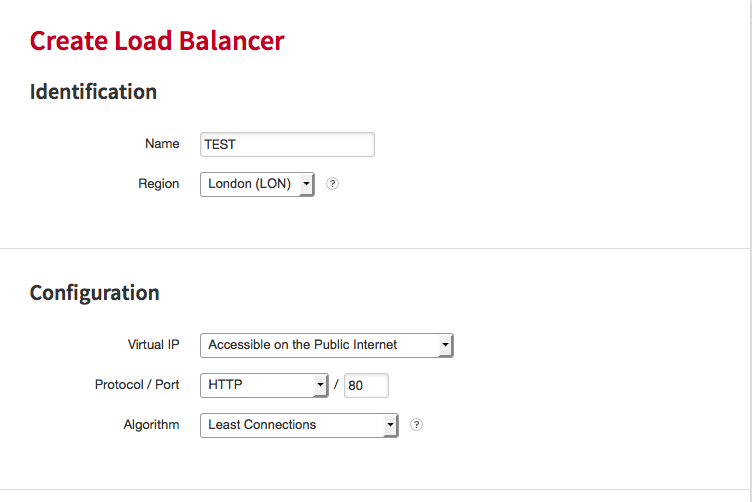
Screen Shot 2015-10-05 at 11.43.41 AM

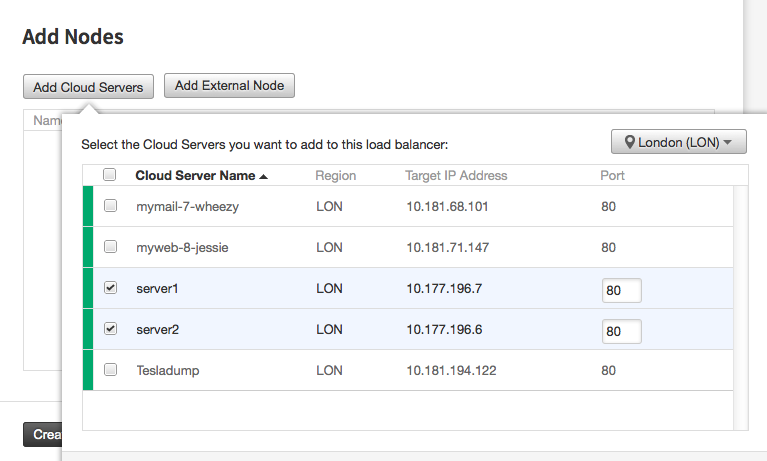
Step 5. Add 2 or more server nodes to the Load Balancer

Screen Shot 2015-10-05 at 11.44.09 AM

Be sure to tick the number of servers you want to add. Please note, it’s possible to add servers to the Load Balancer that aren’t part of the rackspace Network. To do that you can use the ‘add external node’ button. Please note though, that the requests between load balancer and the destination machine goes over the public network interface. Whereas requests from the load balancer to other rackspace servers will always go thru the service net by default. (that is the local 10.x.x.x IP addresses and networks).

Step 6. Configure Cloud Server Firewall Settings to Accept port 80 and (optionally) port 443

# Allow negotiating of connections on port 80 incoming (HTTP), and port 443 incoming (HTTPS)
sudo iptables -I INPUT 1 -p tcp --dport 80 -j ACCEPT
sudo iptables -I INPUT 1 -p tcp --dport 443 -j ACCEPT
# Allow negotiated connections replies to reach us
sudo iptables -A INPUT -i eth0 -m state --state ESTABLISHED,RELATED -j ACCEPT

Step 7. Restart apache2 / httpd service, and check localhost on port 80

service httpd restart
curl localhost

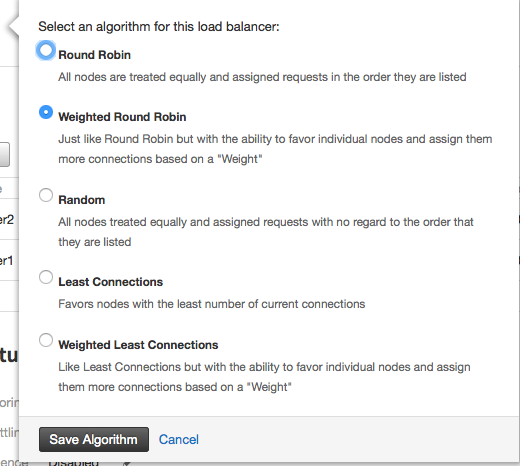
Step 8. Configure the Load Balancer Algorithm (optional). I wanted to use a round-robin approach, each request increments the serverid. So with 3 servers. It takes 3 incremental requests for serverid 1 to serve http request. With 3 servers, i t takes 4 incremental requests for serverid 2 to serve a request twice!

Screen Shot 2015-10-05 at 11.49.41 AM

There are various different settings to use.

Step 9. All Done! You’ve configured the load balancer, and attached 2 cloud servers to the load balancer. Requests can come into the load balancer on port 80, and it sends requests to either server1 or server2 on the same port, 80. It is however possible to send requests to the cloud servers on a different port, which is covered in another article on this website. You could for instance create a server using 10 SSL certificates on a single IP, using different ports. Which could work out a lot cheaper than leasing 10 IPV4 or wrestling with your service provider for additional IP’s for SSL usage

Step 10. Test requests to the load balancer

In this setup I have 2 cloud server IP’s: 5.79.24.207 and 5.79.24.205. They both listen on port 80.

In this setup I have 1 load balancer IP address: 134.213.160.178

I can now connect to the load balancer running on http://134.213.160.178 and it forwards the connections to 5.79.24.207 or 5.79.24.205. If I wanted I could have added another 100 cloud servers to the load balancer, and each time I load a HTTP request to the load balancer, a different cloud server will respond. This allows very large numbers of transactions to go to a website, and for multiple servers to respond individually to seperate customers requesting thru the load balancer. In a production environment after confirming these changes I would then.

Step 11: SET DNS to point to the load balancer IP instead of cloud server IP.

A RECORD ADDED AS BELOW:
mywebsite.com -> 134.213.160.178 

Step 12: Confirm Load Balancer is working

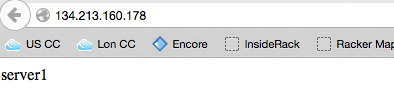
For my purposes I am using the default www website for CENTOS 7 HTTPD /var/www/html/index.html . I changed server1 index.html to say only ‘server1’ and I changed server2 index.html to say only ‘server2’. This way I can check the load balancer is giving a different server every second request. It was:

Screen Shot 2015-10-05 at 12.01.12 PM

Screen Shot 2015-10-05 at 12.01.21 PM

Step 13: Testing for Client IP information with Netcat

tailf /var/log/httpd/access.log
10.190.255.250 - - [05/Oct/2015:10:14:37 +0000] "GET / HTTP/1.1" 200 8 "-" "Mozilla/5.0 (Macintosh; Intel Mac OS X 10.10; rv:39.0) Gecko/20100101 Firefox/39.0"
0.190.255.250 - - [05/Oct/2015:10:14:39 +0000] "GET / HTTP/1.1" 200 8 "-" "Mozilla/5.0 (Macintosh; Intel Mac OS X 10.10; rv:39.0) Gecko/20100101 Firefox/39.0"
10.190.255.250 - - [05/Oct/2015:10:14:40 +0000] "GET / HTTP/1.1" 200 8 "-" "Mozilla/5.0 (Macintosh; Intel Mac OS X 10.10; rv:39.0) Gecko/20100101 Firefox/39.0"
10.190.255.250 - - [05/Oct/2015:10:14:42 +0000] "GET / HTTP/1.1" 200 8 "-" "Mozilla/4.0 (compatible; MSIE 7.0; Windows NT 5.1; InfoPath.1; .NET CLR 2.0.50727; .NET CLR 1.1.4322; MS-RTC LM 8; .NET CLR 3.0.4506.2152; .NET CLR 3.5.30729)"

Presently we can see that requests reaching our servers from cloud load balancer are seeing only the load balancer IP. We need each apache httpd server to know the client IP of each request.

service httpd stop

So, I run netcat on port 80 to see the requests from the load balancer.

[root@server1 html]# nc -l 80
GET / HTTP/1.1
User-Agent: Mozilla/5.0 (Macintosh; Intel Mac OS X 10.10; rv:39.0) Gecko/20100101 Firefox/39.0
X-Forwarded-For: 94.236.7.190
Accept: text/html,application/xhtml+xml,application/xml;q=0.9,*/*;q=0.8
Cache-Control: max-age=0
X-Forwarded-Proto: http
Accept-Language: en-US,en;q=0.5
Host: 134.213.160.178
If-Modified-Since: Mon, 05 Oct 2015 10:11:57 GMT
X-Cluster-Client-Ip: 94.236.7.190
Via: 1.1 542204-LON4WWSG01.secops.rackspace.com 0A02CC2D
X-Forwarded-Port: 80
If-None-Match: "8-52158be551fbf"
Accept-Encoding: gzip, deflate

As we can see there is an X-Forwarded-For header from the load balancer which does reach the cloud server, but by default apache doesn’t know about it and doesn’t put the X-Forwarded-For variable in the Logs, only the src_ip, which is presently the load balancers IP and not our client. So we need to make a small modification to the apache2 default httpd configuration:

Step 14: Modify Apache HTTPD Log ‘combined’ configuration

cat /etc/httpd/conf/httpd.conf

Inside the above file we see the directives:


    # The following directives define some format nicknames for use with
    # a CustomLog directive (see below).
    #
    LogFormat "%h %l %u %t \"%r\" %>s %b \"%{Referer}i\" \"%{User-Agent}i\"" combined

    #
    # If you prefer a logfile with access, agent, and referer information
    # (Combined Logfile Format) you can use the following directive.
    #
    CustomLog "logs/access_log" combined

The part we want to change is very small

LogFormat "%{X-Forwarded-For}i %h %l %u %t \"%r\" %>s %b \"%{Referer}i\" \"%{User-Agent}i\"" combined

We want to add the section above %{X-Forwarded-For}i. This will include the real Client_IP before the Load Balancer IP in the server logs, so it looks like so:

94.236.7.190 10.190.255.250 - - [05/Oct/2015:11:01:11 +0000] "GET / HTTP/1.1" 200 8 "-" "Mozilla/5.0 (Macintosh; Intel Mac OS X 10.10; rv:39.0) Gecko/20100101 Firefox/39.0"

Cancelling a stuck soft reboot task on Xen Server

Today, one of my fellow colleagues received a call about a server that had run out of memory. They sent a soft reboot, and because of that the process task hung. This is because the hypervisor compute node sends a message to the nova agent running on the guest virtual machine! If the guest virtual machine has run out of memory, it’s not possible for nova to receive that command, or, if it does, then the soft (software) reboot can fail, because there is not enough memory to fork the process.

This could have been avoided by issuing a hard reboot straight away, but in this case we needed to cancel the task and send a hard reboot. Here is what I did:

List all pending tasks on xen-server

# xe task-list

uuid ( RO)                : a9f84f3d-0b96-8da2-a1d1-f5b774cd9173
          name-label ( RO): VM.clean_reboot
    name-description ( RO): 
              status ( RO): pending
            progress ( RO): 0.275

Cancel a pending task on xen-server

xe task-cancel uuid=a9f84f3d-0b96-8da2-a1d1-f5b774cd9173

This sets the active_state back to normal and gets rid of the ‘pending soft reboot’, but we need to restart the server too.

Using supernova API to stop and restart the server

supernova lon stop serveruuidhere
supernova lon start serveruuidhere

and…The customer is back up online and running, yay!

Using Rackspace Cloud Files & the API

Hi. So, when I started working at Rackspace I didn’t know very much about API. I know what it is, what it does, and why it’s used, but my experience was rather limited. So I was understandably a little bit concerned about using cloud files and API. Specifically using POST and GET thru CURL, and simple things such as authorization and identification thru header tokens.

First of all to use API, and make API requests we need an access token. The access token is totally different to my mycloud username, password and API Key itself. The token is a bit like a session, wheras the API key is a bit like a form username and password. It’s also worth noting, just like a http session, the $TOKEN will expire every now and then requiring you to authorise yourself to get a new token.

Authorisation & End Points

When you authorise yourself, you will get a token and a list of all the possible endpoints to GET and POST data, that is to say to retrieve or store records or query against particular search pattern, etc.

Step 1: Get User Token Thru Identity API using JSON auth structure

File: auth.json

{
    "auth": {
        "RAX-KSKEY:apiKeyCredentials": {
            "username": "mycloudusernamehere",
            "apiKey": "mycloudapikeyhere"
        }
    }
}
curl https://identity.api.rackspacecloud.com/v2.0/tokens -X POST -d @auth.json -H "Content-type: application/json"

It is possible to do this without the auth.json file and just use the string, like so:

 curl https://identity.api.rackspacecloud.com/v2.0/tokens -X POST -d '{"auth":{"RAX-KSKEY:apiKeyCredentials":{"username":"yourUserName","apiKey":"yourAPIPassword"}}}'  -H "Content-type: application/json" | python -m json.tool

It is also possible to connect to API using just USERNAME and API KEY:

curl https://identity.api.rackspacecloud.com/v2.0/tokens -X POST -d '{"auth":{"passwordCredentials":{"username":"yourUserName","password":"yourmycloudpassword"}}}' -H "Content-type: application/json"

After running one of these commands you will receive a large, and something like the below will be inside it:

This includes your full ‘token’ ID. In this case ‘BBBySDLKsxkj4CXdioidkj_a-vHqc4k6PYjxM2fu6D57Bf0dP0-Su6OO2beafdzoKDavyw32Sjd6SpiMhI-cUb654odmeiglz_2tsplnZ26T2Vj2h3LF-vwXNBEYS1IXvy7ZpARRMVranXw’

This is the token we need to use to authenticate against the API.


       "token": {
            "RAX-AUTH:authenticatedBy": [
                "APIKEY"
            ],
            "expires": "2015-09-29T17:04:56.092Z",
            "id": "BBBySDLKsxkj4CXdioidkj_a-vHqc4k6PYjxM2fu6D57Bf0dP0-Su6OO2beafdzoKDavyw32Sjd6SpiMhI-cUb654odmeiglz_2tsplnZ26T2Vj2h3LF-vwXNBEYS1IXvy7ZpARRMVranXw",
            "tenant": {
                "id": "1000000",
                "name": "1000000"
            }
        },

Step 2. Uploading a File with CURL to a Cloud File Container

# Set the TOKEN Variable in the BASH SHELL
TOKEN='BBBySDLKsxkj4CXdioidkj_a-vHqc4k6PYjxM2fu6D57Bf0dP0-Su6OO2beafdzoKDavyw32Sjd6SpiMhI-cUb654odmeiglz_2tsplnZ26T2Vj2h3LF-vwXNBEYS1IXvy7ZpARRMVranXw'

# CURL REQUEST TO API
CURL -i -X PUT https://storage101.lon3.clouddrive.com/v1/MossoCloudFS_10045567/meh/1.txt -T /Users/adam9261/1.txt -H "X-Auth-Token: $TOKEN"
curl -i -X PUT https://storage101.lon3.clouddrive.com/v1/MossoCloudFS_10045567/meh/2.txt -T /Users/adam9261/2.txt -H "X-Auth-Token: $TOKEN"
curl -i -X PUT https://storage101.lon3.clouddrive.com/v1/MossoCloudFS_10045567/meh/3.txt -T /Users/adam9261/3.txt -H "X-Auth-Token: $TOKEN"

Output


HTTP/1.1 100 Continue

HTTP/1.1 201 Created
Last-Modified: Mon, 28 Sep 2015 17:34:45 GMT
Content-Length: 0
Etag: 8aec10927922e92a963f6a1155ccc773
Content-Type: text/html; charset=UTF-8
X-Trans-Id: txca64c51affee434abaa79-0056097a34lon3
Date: Mon, 28 Sep 2015 17:34:45 GMT

HTTP/1.1 100 Continue

HTTP/1.1 201 Created
Last-Modified: Mon, 28 Sep 2015 17:34:46 GMT
Content-Length: 0
Etag: 83736eb7b9eb0dce9d11abcf711ca062
Content-Type: text/html; charset=UTF-8
X-Trans-Id: tx6df90d2dede54565bccfe-0056097a35lon3
Date: Mon, 28 Sep 2015 17:34:46 GMT

HTTP/1.1 100 Continue

HTTP/1.1 201 Created
Last-Modified: Mon, 28 Sep 2015 17:34:47 GMT
Content-Length: 0
Etag: 42f2826fff018420731e7bead0f124df
Content-Type: text/html; charset=UTF-8
X-Trans-Id: tx79612b28754c4bb3aedd6-0056097a36lon3
Date: Mon, 28 Sep 2015 17:34:46 GMT

In this case I had 3 txt files, each approximately 1MB, that I uploaded to cloud files using CURL and the commandline. The pertinent part is “X-Auth-Token: $TOKEN”, which is the header which contains my authorisation key which was set at the commandline previously with TOKEN= line above it.

Now, it’s possible using a manifest to append these 3 files together into a single file. For instance if these files were larger, say 5GB and at the maximum limit for a file, such as a large dvd-iso, to exceed the 5GB limit we’d need to split that large file up into smaller files. But we want the cloud files container to send the whole file, all 3 5GB parts as if it were one file, this can be achieved with manifests. Here is how to do it!

Creating a Manifest file, defining 3 file parts as one single file download in the data stream

Step 1: Create Manifest File
In my case I created a manifest file first which tells cloud files which individual files make up the large file

[

        {
                "path": "/meh/1.txt",
                "etag": "8aec10927922e92a963f6a1155ccc773",
                "size_bytes": 1048585
        },

        {
                "path": "/meh/2.txt",
                "etag": "83736eb7b9eb0dce9d11abcf711ca062",
                "size_bytes": 1048585
        },

        {
                "path": "/meh/3.txt",
                "etag": "42f2826fff018420731e7bead0f124df",
                "size_bytes": 1048587
        }
]

Step 2: Assign Manifest


curl -i -X PUT https://storage101.lon3.clouddrive.com/v1/MossoCloudFS_10045567/meh/mylargeappendedfile?multipart-manifest=put -d @manifest -H "X-Auth-Token: $TOKEN"

As you can see, it’s really quite simple, by giving the path, etag and size_bytes, it’s possible to append these 3 file references to a single file association. Now when downloading mylargeappendedfile from the cloud storage container, you’ll get /meh/1.txt /meh/2.txt and /meh/3.txt all appended to a single file. This is pretty handy when dealing with files over 5GB, as the maximum limit for an individual file is 5GB, but that doesn’t stop you from spreading some size across multiple files, just like for instance in a rar archive.

Generated Output:


HTTP/1.1 201 Created
Last-Modified: Mon, 28 Sep 2015 17:32:18 GMT
Content-Length: 0
Etag: "8f49c8861f0aef2eb750099223050c27"
Content-Type: text/html; charset=UTF-8
X-Trans-Id: tx64093603d9444e088f242-00560979a0lon3
Date: Mon, 28 Sep 2015 17:32:32 GMT

Compiling Grsecurity into a Linux Kernel

So, I am good friends with this really cool guy at work who is an excellent Linux Technician but also an extremely gifted pentester and security consultant. He has been telling me about the goodness of grsecurity and what it can do for my Linux Box. He says, even if my box is completely compromised, they probably won’t be able to do anything. Immediately after this I wanted to know what this rare moonshine was, and whether it was worth the trouble of kernel modifications and the whole shebang of configuration. After a day of on and off exploration at work, I have decided it is a most worthwhile endeavor and is probably the most extensive security you could install on a Linux server. That is, if you’re able to install it. For your average user it might be a stretch, so here is a nice little how to about how to achieve patching and compiling a linux Kernel with grsecurity module with PaX and advanced filesystem and kernel structure security. In other words, very darn cool.

For debian you might want to do something like
Step 1. Download Kernel Source (DEBIAN/possibly ubuntu)

apt-get source linux-image-$(uname -r)

Step 1. Download Kernel Source for http://www.kernel.org. In this case I’m compiling a version of 4.1.7

cd /tmp
wget https://www.kernel.org/pub/linux/kernel/v4.x/linux-4.1.7.tar.gz

Step 2. Download the latest grsecurity kernel patch, being sure to match your grsecurity patch with the kernel version you want to use on your box

wget https://grsecurity.net/test/grsecurity-3.1-4.1.7-201509201149.patch

Step 3. untar the Linux Kernel, in my case I’m using Linux-4.1.7 Kernel

tar zxvf wget linux-4.1.7.tar.gz

Step 4. Apply the grsecurity patch in the linux-4.1.7 directory we just untarred into /tmp/linux-4.1.7

cd /tmp/linux-4.1.7
patch -p1 < ../grsecurity-3.1-4.1.7-201509201149.patch

Step 5. Ensure that the correct dependancies are installed for both compiling a kernel, and configuring the kernel


# needed for configuring a kernel with make menuconfig
apt-get install ncurses-dev

# needed for building a kernel with kpkg
apt-get install fakeroot kernel-package

Step 6. run make menuconfig within /tmp/linux-4.1.7

cd /tmp/linux-4.1.7
make menuconfig

Step 7. Refer to the grsecurity instructions on how to enable the grsecurity kernel module patches at https://grsecurity.net/quickstart.pdf

Navigate in the make menuconfig graphical interface as follows
Security Options -> GrSecurity --> *
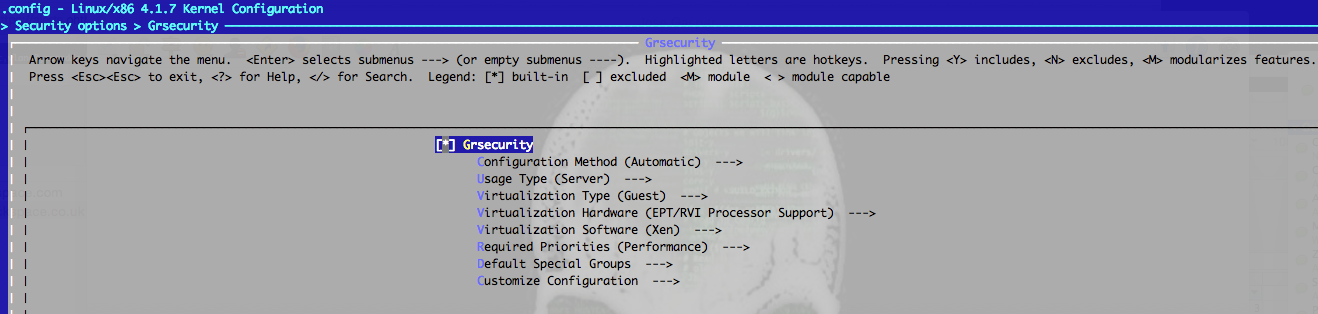
Ensure that you are using Configuration Method (automatic), this is fine for most non power users. See the image below

Screen Shot 2015-09-24 at 5.23.26 PM

Step 8. Compile the Kernel Image, in debian this is something like;

fakeroot make-kpkg --initrd --revision=1 kernel_image

For other operating systems it will be more similar to

make dep bzImage modules modules_install install

For those persons that weren't able to complete this tutorial, maybe they will benefit from the documentation offered by grsecurity wiki, and the quickstart guide pdf they offer;

https://en.wikibooks.org/wiki/Grsecurity/Configuring_and_Installing_grsecurity
https://grsecurity.net/quickstart.pdf

Some more (very helpful) information about compiling kernel in debian:

https://www.debian.org/releases/stable/i386/ch08s06.html.en
https://debian-handbook.info/browse/stable/sect.kernel-compilation.html